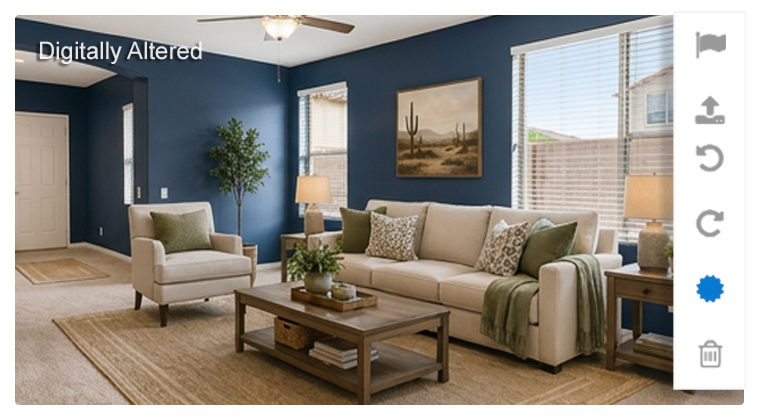
When it’s time to add your media to your client’s listing in Flexmls, you can add photos to both Incomplete and Active listings.
Uploading Media
To upload photos to the media section of a listing, first click on Photos. Then, click Browse to locate the photos on your computer. It’s important to note that the primary photo does not need to be of the front exterior, but the front exterior photo must be added within four days of the listing being active. After uploading the photos, you can name them and reorder them by dragging them or changing the number in the left corner.
Do you have altered photos?
If you have altered photos, here are the steps to add the digitally altered disclosure.
A photo is considered digitally altered when software or AI is used to add, remove or significantly change image content. Standard photo adjustments for clarity are permitted, provided they do not misrepresent the property.
Once your photos have been added to the listing’s media section, any photo that has been altered requires a disclosure. Subscribers and photographers must upload the original, unaltered photo directly before or after the watermarked, altered version.
Adding the Digitally Altered Disclosure
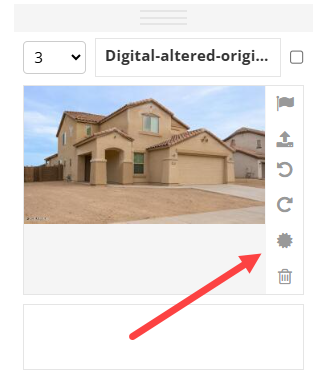
To add the digitally altered disclosure to your photos in Flexmls, begin by clicking the Sunburst icon.
Changes are automatically saved. The Digitally Altered watermark will be added and is visible in the live listing in Flexmls.

IMPORTANT NOTE: After adding the watermark, it cannot be removed.